Initiate an AIS request
In this tutorial, you will learn how to use AIS to initiate a request to retrieve account information for several common use cases. By the end of this tutorial, you will know how to:
- Create a well-formed AIS request payload
- Interpret a successful response
Send a request
AIS response payloads vary depending on the use case. In this step, you’ll learn how to create and send AIS requests for your chosen use case.
Account Information Services and Pay by Bank (U.S.)
Use AIS to collect payments information from customers and reduce costly payments. The following example shows the minimum required fields for initiating a consent request in the U.S.:
{
  "country": "US",
  "consentType": "ACCOUNT_INFORMATION",
  "externalUserId": "user-12345",
  "externalUserProfile": {
    "firstName": "John",
    "lastName": "Doe",
    "email": {
      "isPrimary": true,
      "emailAddressType": "PERSONAL",
      "emailAddress": "john.doe@example.com"
    },
    "phone": {
      "phoneNumberType": "MOBILE",
      "phoneNumber": "+1-123-456-7890"
    }
  },
  "locale": "en-US",
  "redirectUrl": "https://abc.merchant.com/callback",
  "referenceId": "120c99c4b05347d096ccd77f758f7315"
}{
"consentLinkId": "ed392d86-83f3-4611-ac51-3a00442c8fc5",
"consentId": "7c9e6679-7425-40de-944b-e07fc1f90ae7",
"referenceId": "120c99c4b05347d096ccd77f758f7315",
"consentLink": "https://globalconnect.jpmorgan.com?consentLinkId=ed392d86-83f3-4611-ac51-3a00442c8fc5&redirect_uri=https://test.merchant.com/callback&locale=en_US",
"createdAt": "2025-05-29T14:03:01Z",
"consentLinkExpiringAt": "2025-05-29T14:13:45Z"
}After the user completes account linking, you receive the account details through GET request or webhook or callback.
Manual Account Validation (U.S.)
As part of the consent flow, customers link their account through their financial institution or manually enter their account and routing numbers. J.P. Morgan Chase Account Validation Services validates the manually entered information. Customers then follow the on‑screen prompts to complete the linking process.
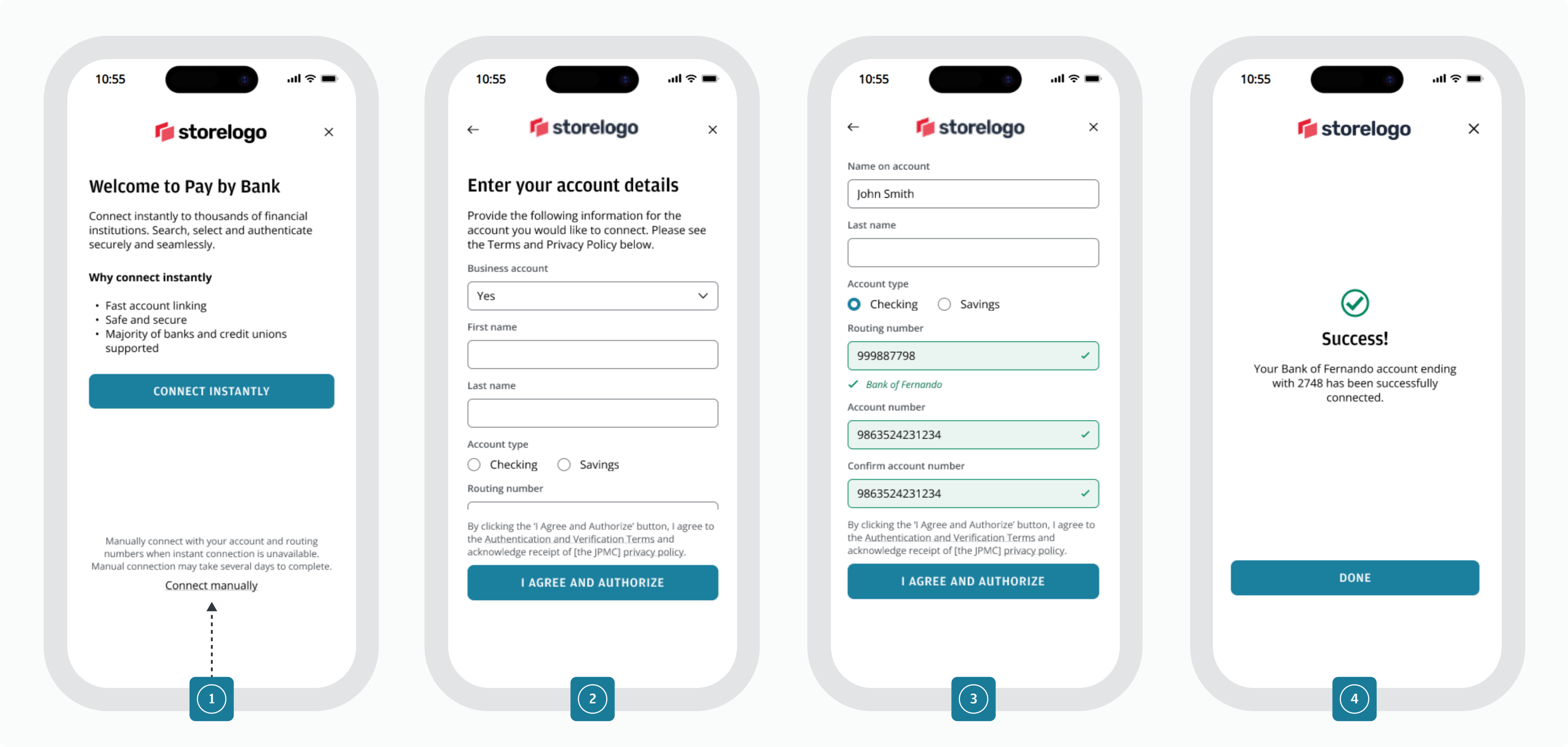
Manual account connection allows customers to link their bank accounts by entering account details directly.
- Customer selects the "Manually Connect" option to begin the account linking process.
- Customer enters their account details including business account type, name, routing number, account number, and accepts the Authentication and Verification Terms and privacy policy.
- System verifies the mandatory fields and validates the account information with the Financial Institution.
- Customer receives a successful response once validation is completed and the account is connected.
With manual account validation, you can perform several types of validation depending on your enabled fallback options: instant validation, micro-deposits with challenge, automated validation, or full validation.
Account Information Reports (U.K. / EU)
Collect one-time reports on customer account information to support with customer onboarding, validation and subscription initiation. The following example shows the minimum required fields for report generation in the United Kingdom:
{
  "country": "GB",
  "consentType": "ACCOUNT_CHECK",
  "externalUserId": "JPMCUser1234@chase.uk.com",
  "locale": "en_US",
  "referenceId": "120c99c4b05347d096ccd77f758f7315",
  "financialInstitutionId": {
    "idType": "SORT_CODE",
    "id": "090129"
  }
}{
"consentId": "ba28d866eeae4657a7e59156534159a8",
"consentLinkId": "749a8a00-c938-4ab6-a5e2-e0bcd0b2ae55",
"createdAt": "2026-02-02T17:08:28Z",
"consentLinkExpiringAt": "2026-02-02T17:08:28Z",
"consentLink": "https://paybybank.jpmorgan.com/1.0/reports/create-report?report_types=ACCOUNT_VERIFICATION_REPORT&account_dialog_type=SINGLE&refreshable_items=CHECKING_ACCOUNTS,SAVING_ACCOUNTS,CREDITCARD_ACCOUNTS&input_provider=demo-bank&consent_link_id=749a8a00-c938-4ab6-a5e2-e0bcd0b2ae55&redirect_uri=https://test.merchant.com/callback&locale=en_US"
}Consent status
The consent status shows whether a customer has granted permission for account access or payment initiation. You can check the consent status to determine what actions are available. The following table describes each consent status:
| Consent Status | Description | U.S. | U.K. | EU |
|---|---|---|---|---|
| `SUCCESS` | Consent process completed successfully. | ✔ | ✔ | ✔ |
| `PARTIAL_SUCCESS` | Consent completed successful. Consent data retrieval partial successful. | ✔ | ||
| `FAILED` | Consent process failed. | ✔ | ✔ | ✔ |
| `REVOKED_BY_USER` | Consent revoked by the user. | Coming soon | ||
| `REVOKED_BY_CLIENT` | Consent was revoked by the client. | ✔ | ||
| `REVOKED_EXPIRED` | Consent has expired and is no longer valid. | Coming soon | ||
| `PENDING` | Consent process is still in progress. | ✔ |
Related
- For more information about the error codes, see Error codes.
- For more information on AIS request parameters, See request parameters.
Next steps
- Learn how to retrieve account information for an AIS request.